*Drivers can only be added to Deliveree in this manner if stores are NOT using AURA POS.
From Driver Admin in the web, (www.Deliveree.co.za) drivers can be added and edited.
To manage the driver’s, Click the Menu on top right side of the screen.

Then click on “Drivers” 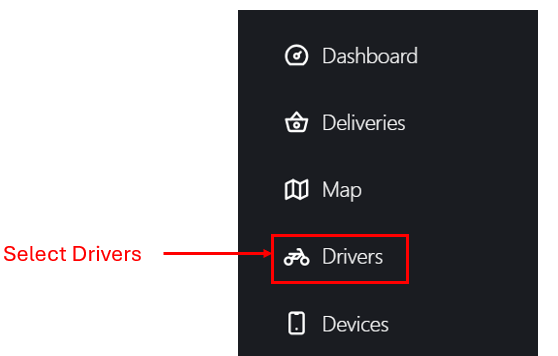
You will then be taken to the “Driver Admin” page.
Click "+ " to Add a new Driver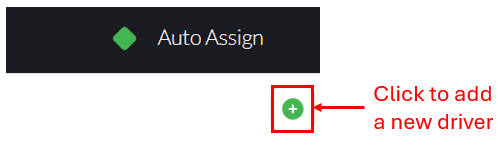
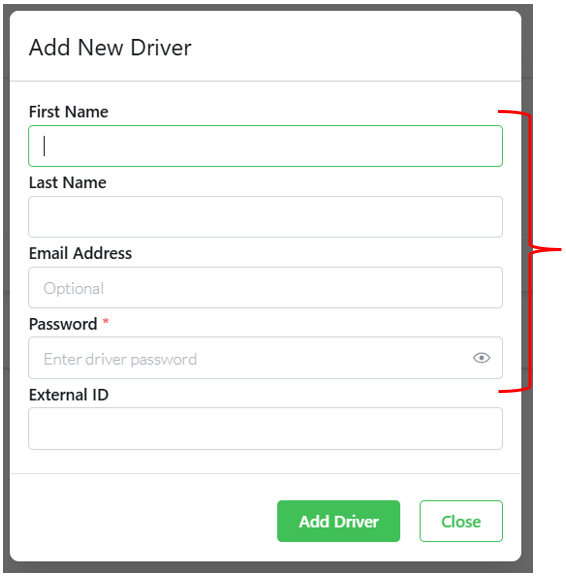
Enter the driver’s details, that is their First Name, Last Name, and Password. After creating the password, provide it to the driver, as this is the password they will use to log in to the Deliveree Driver Application.
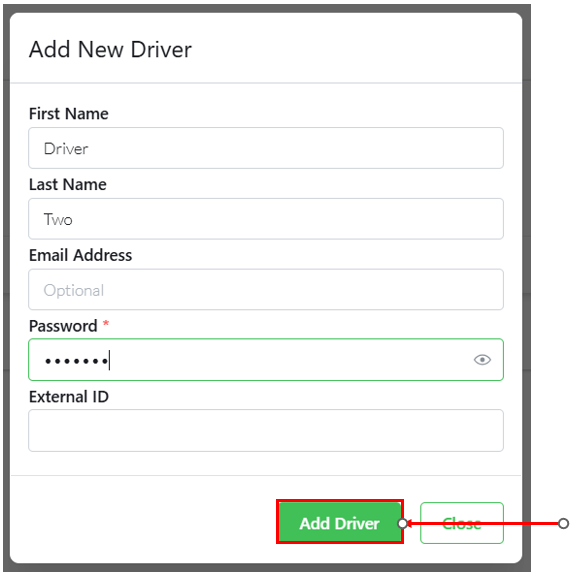
Click Add Driver to save the driver's details.
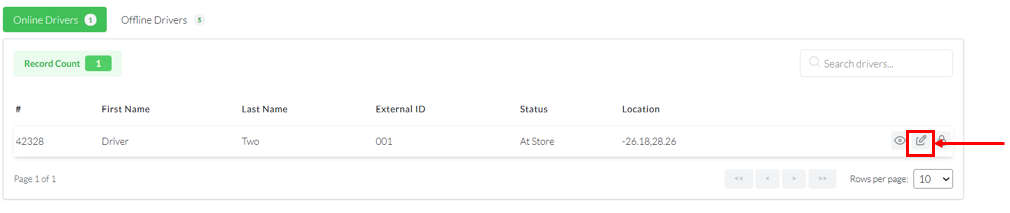
To further edit Driver details, click

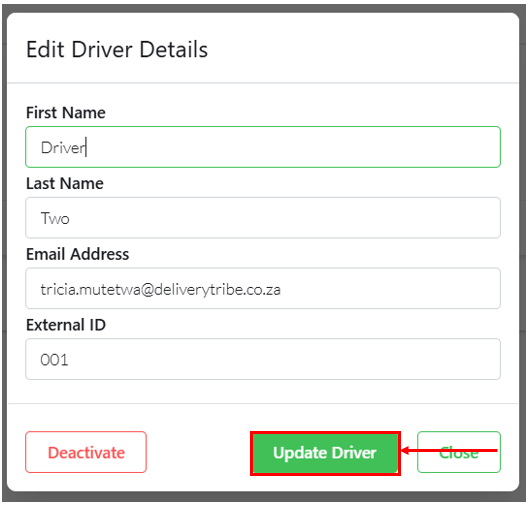
Click Update Driver to update driver's details
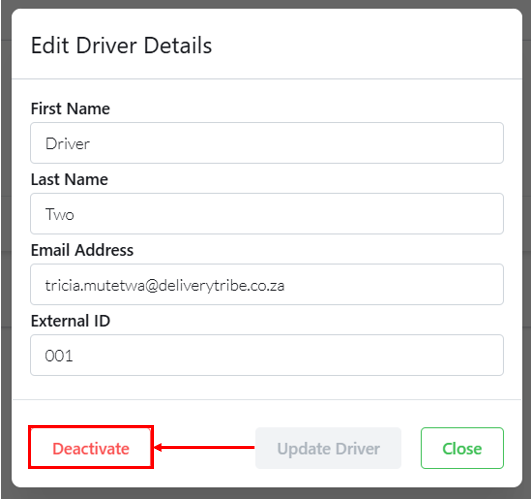
To remove the driver from the list click Deactivate.
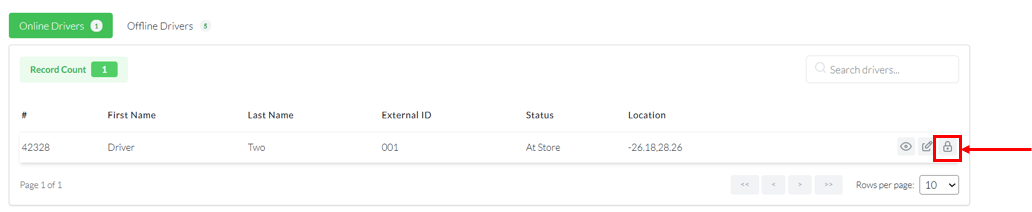
To change the driver's password click 
Type in the new driver's password 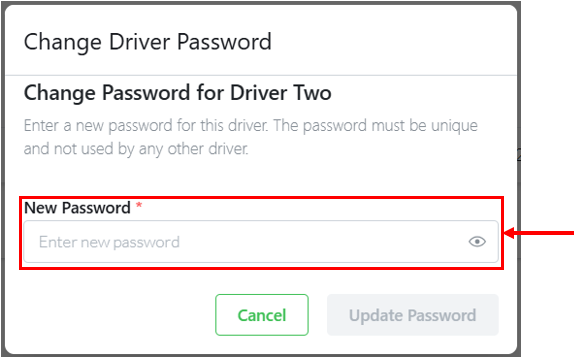
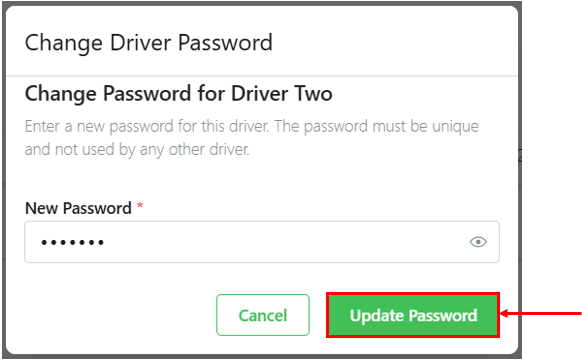
Select “Update Password” to save the driver’s new password. Then provide the driver with the updated password so they can use it to log in to the driver application.
Contact Details:
- Support@deliverytribe.co.za or call 031 880 1602 to book additional training.
Learning Material Feedback Form
We would love to hear your thoughts and suggestions so that we can improve our training material. Please follow the link and provide us with feedback:
https://form.jotform.com/210180530919551